Computer hardware
A computer is a handful of parts with one job each: the processor calculates, memory holds what is needed right now, and storage holds what has to survive. Everything else either connects those three or supplies their power and cooling.
- Lesson 3 of 12
- Beginner
- Free, no signup
The higher up, the faster and the smaller
The sizes are read off the same server that serves this page. What matters is the order: every layer down is bigger and slower.
- Processor cacheInside the processor itself, for what is needed this instant 128 KB to 16 MB
- Main memory (RAM)The desk; emptied when the power goes 7.6 GB
- Disk (SSD)The filing cabinet; about 160 times slower than memory in this measurement 75 GB
- Somewhere else, across a networkCloud storage and backups; endlessly large and slowest of all as much as you buy
These numbers belong to one server, not to your computer. The sizes change; the order of the layers does not.
Last checked: Facts and tool names in this lesson are re-checked against their sources on this date.
What is inside a computer
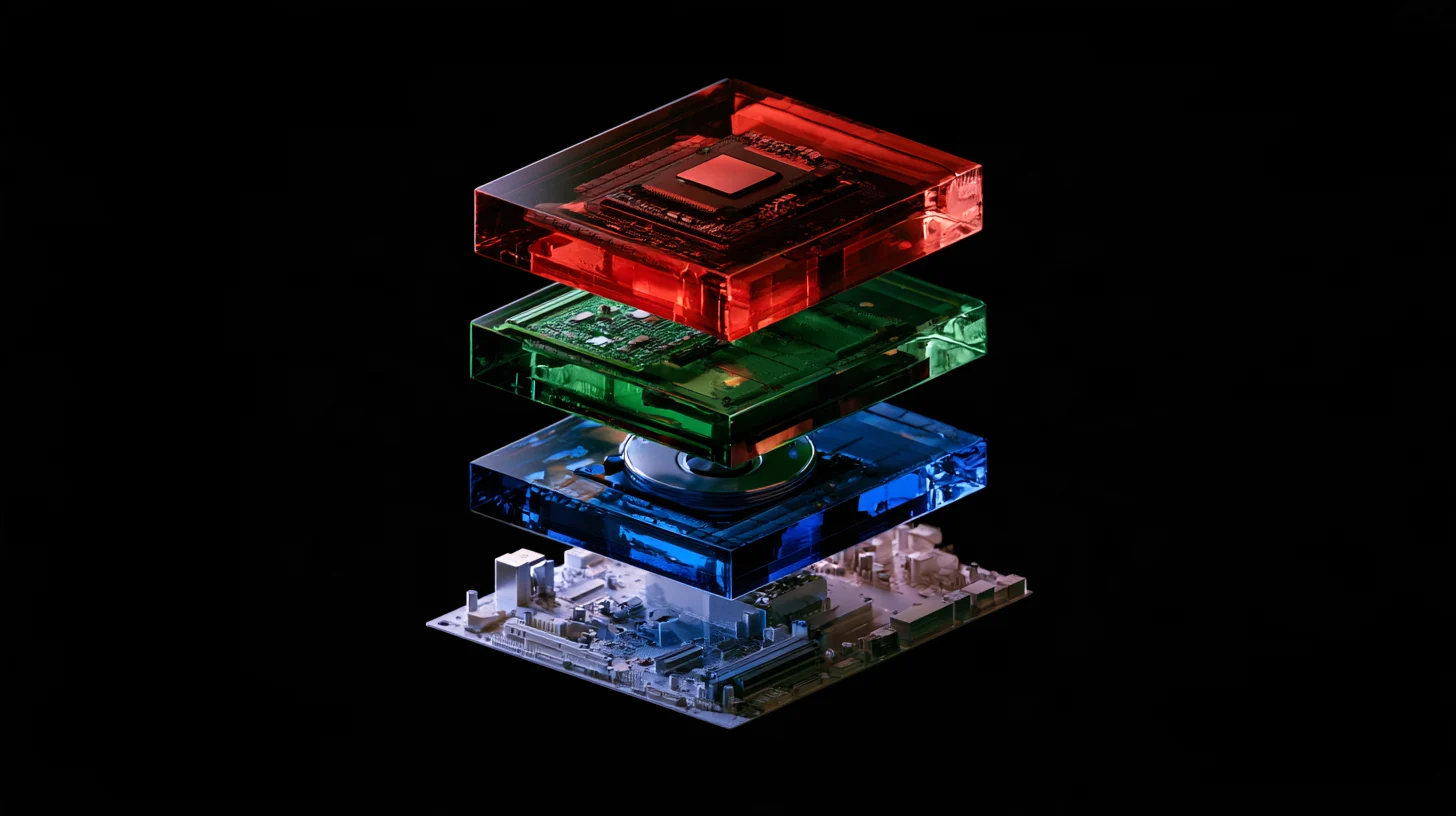
Hardware means everything in a computer you can physically touch. There are five main parts, and the first three do the actual work.
The processor, or CPU, calculates. Everything a computer does, from adding two numbers to drawing this page, ends up as billions of tiny operations, and the processor performs them one after another, very fast. A modern processor has several cores, which is to say several accountants working side by side. The server this site runs on has four.
Memory, or RAM, is the desk. Every open program, every open file and every browser tab you left alone is spread out on that desk. The processor only works with what is on the desk. A bigger desk means more things can stay open at once.
Storage is the filing cabinet. It is slower, but its contents survive when the power goes. Two kinds are common today: a mechanical hard drive with a spinning metal platter, and an SSD with no moving parts at all, which is why it answers far faster.
Two more parts get no thought until they fail. The motherboard is the big board everything plugs into; the part that matters to you is that it decides which components physically fit in this computer at all. The power supply and the cooling deliver electricity and carry heat away, and a machine that shuts down by itself or runs its fan at a maddening pitch usually has a problem right there, not in the processor.
A good metaphor breaks somewhere, and it is better to say where yourself. Put the desk and the cabinet side by side and the difference looks like nothing more than distance. The real difference is much larger than that, and the third part of this lesson gives the number.
How is RAM different from storage
This is the most common misunderstanding about computers, and it is worth settling once. Memory and storage are both places to put things, but they do two entirely different jobs.
Memory lives on electricity. The moment the computer switches off, whatever was in memory is gone, with no appeal. That is why a power cut destroys the file you had not saved: that file was still on the desk and had never made it to the cabinet. Storage is the opposite; it needs no power and holds its contents for years.
So "my computer has a terabyte, why is it slow" is not the right question. A terabyte is the size of the cabinet and says nothing about the size of the desk. The right question is how much of the desk is still free once everything you use is open.
And here is the part that gets said less often, and it is exactly why more RAM speeds a machine up even when you open nothing new: an operating system refuses to leave free memory idle. Every file read from disk leaves a copy in memory so the next read does not have to go to the disk at all. The Linux kernel documentation puts it in one line: whenever a file is read, the data is put into the page cache to avoid expensive disk access on subsequent reads, and those copies are handed back the moment memory runs short. Memory that looks free is in fact working.
The practical consequence: when memory fills up, those copies are the first thing the operating system sacrifices. From that moment on, work that was being answered out of memory yesterday has to go back to the disk. A computer does not get slow all at once; it gets slow past a point.
What happens when you double click a program
All three main parts play their role in those few seconds, and the order is always this one.
-
1
Found on disk
The program file is in the cabinet and the operating system knows where
-
2
Copied into memory
This is the step that drags on a slow disk
-
3
Run by the processor
The processor reads instructions from memory, never from the disk
-
4
Stays until you close it
And is wiped, without exception, when the computer shuts down
This is simplified. A real operating system loads only the parts of the program it needs and pages the rest in later, on demand.
What actually makes a computer feel slow
Our position is plain: for everyday work, the processor is almost never the culprit. Too little memory and a slow disk are what make a computer feel slow, and the reason is a number we can put here.
We measured it on the very server that serves rgb.ir. We made a 128 MB file and read 2000 random 4 KB chunks out of it. The first time we made sure those reads genuinely reached the SSD: each one took about 0.22 ms. Then we repeated the same 2000 reads with the data now sitting in memory: about 0.0013 ms each. That is roughly 160 times faster, and that is against a modern SSD.
Now the sentence from the previous part means something. While memory has room, a large share of what a computer does happens at the small number. When memory fills, the same work happens at the big one. The gap is wide enough that the fastest processor on earth does not make it up, because the processor spends the whole time sitting still, waiting.
On a mechanical hard drive the gap is far wider, because there a physical arm has to move. We do not quote a figure for it, because this machine has no mechanical drive and we did not measure one; we only state the direction. That single fact is what makes swapping an old laptop hard drive for an SSD the most noticeable upgrade available.
Two more causes have nothing to do with parts and cost nothing. First, the programs that start with the machine and hold memory all day. Second, a disk that is nearly full and leaves the operating system no room for its temporary files; we watch the same thing on our own servers, and this machine sits at 85 percent, which is the last point we are comfortable with. When a site we host gets sluggish, those two are the first things we look at, not processor power.
And the boundary of the claim: if the slow thing is exporting video, rendering in 3D or compiling code, then the processor really is the bottleneck and more memory changes nothing. That is not an exception, it is a separate rule.
Who actually needs a graphics card
A graphics card is a processor too, of a different kind. The main processor does complicated things one after another; a graphics card does one simple thing to millions of points at the same time. For colouring in the pixels of a 3D scene that is exactly what is needed.
Our position, and we know a salesperson would not enjoy it: for most people a separate graphics card is the most common way to waste money. Web browsing, office work, video playback and even a good deal of web design work run well enough on the graphics built into the processor. A graphics card makes none of them faster.
Four groups genuinely need one: gaming, video editing and colour work, 3D modelling and rendering, and, for a few years now, running AI models on your own computer. That fourth group has an important difference: the deciding number there is not the card speed but the size of its dedicated memory, because a model either fits in it or does not. That subject has a lesson of its own.
One small point that is often stated wrongly: most laptops and every phone have their graphics built into the processor and take a share of the main memory for it. On such a device, the memory that goes to graphics is taken off your desk.
Which part to change first
The answer turns on one thing: what exactly is the computer doing when it goes slow.
My computer is slow; where should the money go
Memory and disk
- If the drive is mechanical, fit an SSD; that is the most noticeable upgrade there is
- If memory is always full during ordinary work, add RAM
- Before buying anything, get the disk under eighty percent; it is free
Processor or graphics card
- Processor for compiling code and heavy calculation
- Graphics card for 3D rendering and running a model on this same computer
- Time that exact job first, then buy
Neither branch means anything on a device with soldered memory and a non replaceable disk. Check that first.
What to check before buying or upgrading
Start by finding out what you already have. On Windows, Task Manager, Performance tab; on macOS, Activity Monitor; on Linux, the two commands free -h and lscpu. You need three numbers: total memory, how much is in use at an ordinary working moment, and the type and free space of the disk.
Then check compatibility, and here is a fact people learn too late: on many of the thin laptops of the last few years the memory is soldered to the board and cannot be added to at all. Which means "I will add RAM later" is not a plan for that machine. Storage, on many of the same machines, is still replaceable. The answer has to come from the manufacturer own page for your exact model number, not for the model family.
And the last thing, which usually costs nothing: before you pay for a part, empty the list of programs that start automatically and get the disk under eighty percent. If it is still slow after those two, then go shopping. That is the order.
The natural next step is to see what the operating system does with these same parts, and why two computers with identical hardware can behave completely differently.
The fast path, with AI
The usual route is to search the laptop name and read the opinions of strangers on forums. The fast route is to hand a model the numbers from your own machine and ask one precise question. The difference is two moves almost nobody makes: ask the model which number it reasoned from, then ask it what it does not know that could change the answer.
- Take the numbers off your own machine: total memory and usage at an ordinary working moment, disk type and free space, and the full processor name.
- Give the recipe below to a fast, cheap model. The job here is reading and ordering, not judgement, so a light class model is plenty; the current pick is on the AI section of this site.
- Do not read the answer from the top. Read the "what I do not know" line first; if it says it does not know whether the memory is soldered, you do not have an answer yet.
- Check that one recommended part on the manufacturer page for your exact model number, then buy.
Copy-ready recipe
These are my computer specifications:
- exact model and model number: {model}
- total memory: {e.g. 8 GB}   in use at an ordinary working moment: {e.g. 7 GB}
- disk: {type and capacity}   free space: {amount}
- processor: {full name}

What is slow: {e.g. 20 browser tabs plus a large spreadsheet}

1. List three possible upgrades in order of effect.
2. Give one sentence of reasoning for each, and say explicitly which number above you reasoned from.
3. Then write what you do not know about this device that could change that order.
Do not suggest any part numbers.
Before you trust the output: The last step is not a formality. The model does not know whether your laptop memory is soldered or how many slots it has, and it will name an incompatible module in exactly the same confident tone. The number you trust has to come from the manufacturer page for your exact model, not from inside the chat. That is why the recipe above tells it not to suggest part numbers.
AI in this kind of work
There are two things AI genuinely does well here, and one it cannot do at all. Well: explaining what a part does, and turning a spec sheet full of jargon into plain language. Badly: knowing what is inside your computer, because it cannot see it, and anything it says is a guess unless you supplied the numbers yourself.
Tools that actually help
- Gemini Good at reading a spec sheet and pulling the three numbers that matter out of it. Iran is not on Google own supported countries list; the detail is on this tool page on this site.
- Claude Answers well to "explain it as if I have never opened a case" and leaves fewer terms undefined. Iran is on neither of the company two supported countries lists.
- ChatGPT For translating hardware jargon and comparing two laptop models on paper. Same access limitation, and like the rest it cannot see inside your machine.
Where it backfires
Two specific risks. First, a screenshot of your system information page is not only numbers: it usually carries the account name, the device name, a serial number and sometimes the home network name in the same image. Google own privacy page for Gemini says plainly not to enter information you would not want a human reviewer to see or Google to use to improve its services. Type the numbers, do not send the picture. Second, the same page says responses may be inaccurate, and in this subject inaccuracy has a specific shape: the model names, with total confidence, a memory module that does not fit your board. A hardware mistake produces no error message; it produces a return.
Sources: Google: Gemini Apps Privacy Hub (last updated 10 August 2026) Anthropic: is my data used for model training
Where this advice stops
Everything here is about an ordinary personal computer. On a phone or tablet, and on most thin laptops since roughly 2020, none of these upgrades is possible: the memory is soldered and sometimes the storage too. There your only lever is what you buy on day one. And the "memory and disk first" rule has a clear boundary: if your slow job is rendering, exporting video or compiling, the processor really is the bottleneck and more memory changes nothing. The numbers in this lesson also come from a virtual server, not a laptop; on your own machine the ratios will differ, though the order of the layers will not.
From our own work
The 160 times figure comes from a measurement on this very server and can be repeated. The machine: an AMD EPYC-Rome processor with 4 cores, 128 KB of L1 data cache, 2 MB of L2 and 16 MB of L3, 7.6 GB of main memory and a 75 GB disk that was 85 percent full that day. The method: we made a 128 MB file, picked 2000 random offsets from a fixed seed, and read the same 2000 4 KB chunks twice. The first time we evicted that file own pages from the cache so the read genuinely reached the disk; the second time we left them alone. Four consecutive runs: cold 228, 215, 212 and 226, warm 1.2, 1.4, 1.3 and 1.3 (in the same small unit, thousandths of a millisecond), a ratio between 154 and 170. One necessary honesty: this is a virtual machine and the host own cache sits underneath us, so if the cold number is wrong it is wrong in the optimistic direction. The real gap is wider, not narrower.
Real follow-up questions
Is 8 GB of RAM enough for everyday work?
For browsing and office work, usually yes, but "usually" is doing work in that sentence. Instead of a general answer, look at your own machine at an ordinary working moment and see how much memory is left free. If it is always near zero, the answer for you is no, even if it is yes for your neighbour.
SSD or a regular hard drive?
For the disk the operating system and programs live on, SSD, no argument. A mechanical drive still has one honest use, which is cheap bulk storage: photo archives, video, old versions. So the two are not really competitors; they do different jobs.
Does a stronger graphics card open websites faster?
No. How fast a site opens is decided by your connection, that site server and the weight of what it sends, not by your graphics card. A graphics card only shows itself where a heavy image has to be generated, and an ordinary web page is not that.