Image formats: which one goes where
Picking an image format is not a matter of taste: the kind of image decides the answer. Photographs shrink with lossy compression, logos and icons belong in vector, and anything that needs transparency drops out of JPEG immediately.
- Lesson 6 of 12
- Beginner
- Free, no signup
The four jobs that pick the format for you
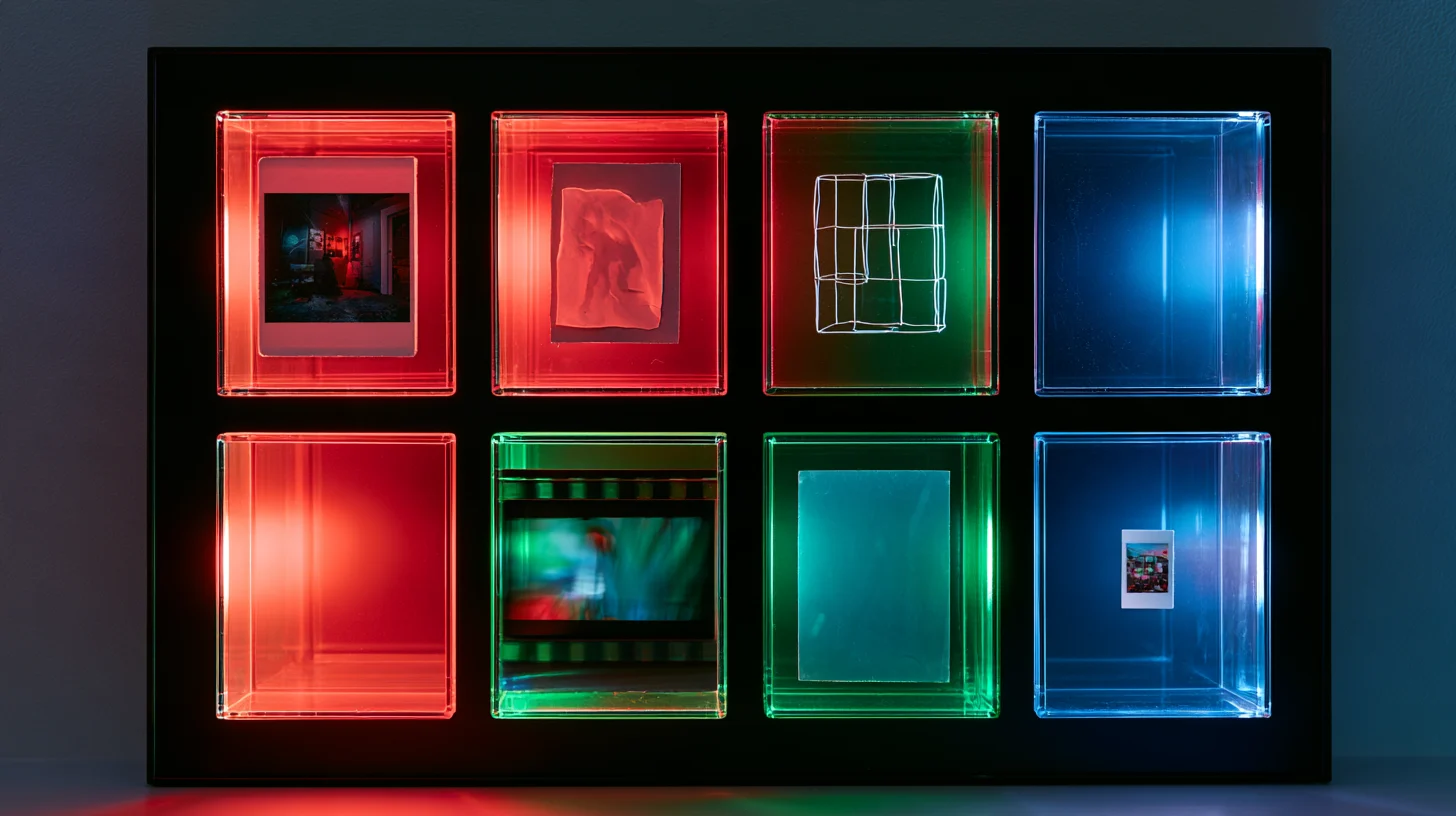
The cells carry no axis labels because there are no axes: each cell is a job, with its answer written beside it.
-
Photograph
AVIF or WebP, with JPEG as the fallback.
-
Image with text
Lossless WebP or PNG. Letter edges break first.
-
Logo, icon, diagram
SVG. One file for the favicon and the three metre banner.
-
Motion
Video, not GIF. Smaller and cleaner.
These four cells settle the format, not the size. An image in the right format at the wrong size is still slow.
Last checked: Facts and tool names in this lesson are re-checked against their sources on this date.
Raster or vector: the question that comes before the format
An image format is not just a file extension. It decides how the image data is packed and what the file is allowed to keep: transparency, animation, colour depth. That makes the choice a technical one, with right answers.
Before anything else there is a split that the rest of the decisions fall out of. A raster image is a grid of pixels: a camera photo, a screenshot, anything that came from the real world. Enlarge it and the software has to invent pixels that were never in the file. A vector image has no pixels at all; it is a set of instructions for drawing shapes. The same logo is drawn from one file at favicon size and on a three metre banner, and it is sharp both times.
You meet the consequence of that split somewhere else entirely. A logo delivered only as a 500 pixel PNG is a dead end, because from then on every larger size means designing it again. The reverse holds too: vector is meaningless for a photograph, and nobody describes a person's face with a few hundred geometric shapes. MDN's own format guide recommends SVG for user interface elements, icons and diagrams, which is exactly the place where an image has to be drawn accurately at different sizes.
Raster and vector, two different things with two right uses
Raster: a grid of pixels
- Photos, screenshots, anything from the real world
- Enlarging means inventing pixels that were never in the file
- Every size needs its own export
- JPEG, PNG, WebP, AVIF, GIF
Vector: instructions for drawing shapes
- Logos, icons, diagrams, anything that was drawn
- Sharp at any size, with no fresh export
- Still editable next year
- SVG for the web, AI and EPS as source files
Neither is better than the other. The mistake is handing one's job to the other.
The six formats that actually do the work
Six formats do practically all of the work on the web. The columns below are read from MDN's image format guide, not from personal experience.
| Format | Compression | Transparency | Animation | Where it belongs |
|---|---|---|---|---|
| JPEG | Lossy | None | None | Photographs, when nothing newer is available |
| PNG | Lossless | Alpha channel | Only as APNG | Flat artwork, screenshots, anywhere precision matters |
| WebP | Lossy or lossless | Alpha channel | Yes | Today's default for a raster image |
| AVIF | Lossy or lossless | Alpha channel | Yes | Photographs, when better compression is worth it |
| SVG | Vector, lossless | Yes | Yes | Logos, icons, diagrams |
| GIF | Lossless over a palette of at most 256 colours | All or nothing | Yes | Almost nowhere |
Browser support is deliberately not a column, because it is not a simple yes and no but a list of versions. JPEG, PNG, GIF and SVG work in all versions of Chrome, Edge, Firefox, Opera and Safari. So does WebP, with one condition MDN spells out: on macOS you need Safari 14 or later and Big Sur or later at the same time. AVIF is younger, and MDN gives its versions as Chrome 85, Opera 71, Firefox 93, Safari 16.1 and Edge 121. That is also why MDN's own advice is to give AVIF a WebP, JPEG or PNG fallback through the picture element.
And a position not everyone shares: GIF is kept alive by culture, not by engineering. Its palette tops out at 256 colours, its transparency is all or nothing, and its animation carries no real compression between frames. MDN suggests WebP, AVIF or APNG for animation. GIF survives only where the destination accepts nothing else.
Which format for which job
Start from the job, not from the format. Four cases cover nearly everything.
- Photographs. AVIF or WebP, with JPEG as the fallback. If your cache layer or CDN negotiates the format with the browser for you, your job is only to upload one good master and let that layer decide.
- Screenshots and anything containing text. This is where lossy compression does the most damage, because the breakdown starts at the edges of letters. Lossless WebP or PNG.
- Logos, icons, diagrams. SVG. If the destination will not take SVG, export a PNG from the vector file; do not enlarge an existing PNG. The logo design lesson reaches the same conclusion from the design side.
- Motion. Video, not GIF. A short MP4 or WebM is smaller, cleaner, and leaves playback under your control.
One warning about SVG that gets said too rarely: an SVG is an XML document and it can carry script. Do not put a vector file from an unknown source straight onto your site. For your own icons this is a non-issue; for a file a user uploads it is not.
And a saving that beats any format change: a large share of what people publish as images does not need to be an image at all. Icons, diagrams, tables and text logos are all built from text, CSS and SVG, and then there is no format to choose and no size to get wrong.
One question that settles most format decisions
Did this image come from a camera, or did someone draw it?
It is raster, so the content picks the format
- Continuous colour, no text: lossy AVIF or WebP
- Has text or flat colour: lossless WebP or PNG
- Needs transparency: JPEG leaves the list
It is vector and should stay vector
- SVG for the web, a source file for later edits
- Destination refuses SVG: export a PNG from the vector
- Unknown source: an SVG can carry script
This fork does not settle the borderline cases: a photo with text laid over it sits on both sides and needs your eyes.
Transparency and animation, where a wrong pick shows immediately
JPEG has no alpha channel. MDN says it in one line and everything follows from it: there is no such thing as a transparent JPEG, and what you get back is a white rectangle.
GIF has transparency, but it is all or nothing. One palette index is marked transparent and every pixel carrying that colour becomes fully transparent; the rest stay fully opaque. There is no middle. The result is that stair stepped fringe around a logo, and here is the part that costs people hours: the colour of that fringe comes from the background the file was flattened against. A logo built on white carries a light halo on a dark background, and you can hunt through the design software forever without finding it, because it is in the file and not in the artwork.
PNG, WebP and AVIF carry a real alpha channel and keep a soft edge soft. For animation, those same three plus APNG do GIF's job better. But more honestly than that: if what you are making runs longer than a few seconds, it is not an animated image at all. It is a video and it should stay one.
What to set when you export
The order of operations matters more than the numbers themselves.
Size first. Export at the size the image is actually displayed, doubled for dense screens. No quality setting rescues a 4000 pixel image dropped into a 600 pixel slot. That single setting usually does more than changing the format, and because image size feeds straight into Core Web Vitals, if your problem is site speed this is where the work starts, not at the format.
Then quality, provided you know what that number is. A quality number is not a percentage of anything; it is a knob on an encoder, and the same number means two different things in two different encoders. The practical method: put the export next to the original at 100 percent zoom, bring the number down until you can see the difference, then go one step back up. And the place to look is not the sky or the background; it is the edges of letters and the borders between flat colours, because that is where the breakdown appears first.
Never re-export from a lossy file. Every encode takes another bite out of what was already lost. Go back to the master, even when all you want is a slightly smaller copy.
Two small habits are worth building: strip metadata for the web, and give the file a descriptive name. One warning about stripping metadata that is worth knowing: if the image came out of an AI tool, the marker is not necessarily in the metadata. Google writes that SynthID embeds its watermark inside the image itself and that it is designed to stand up to modifications like cropping, adding filters and lossy compression. Converting the format does not remove it.
The fast path, with AI
When you have a folder of two hundred images, deciding the format one by one is not work, it is punishment. The right move is to pull a mechanical inventory out of the files first, then hand that inventory to a language model. A fast, cheap model of the Flash class is enough here, and our current pick is listed in this site's AI section. The trick is the colour count column: a real photograph carries tens of thousands of colours and a flat graphic carries a few hundred, and that single number is the separator no tutorial mentions.
- Pull an inventory out of the folder. With ImageMagick one line does it: identify -format "%f|%m|%wx%h|alpha=%A|colors=%k|%b\n" * gives you name, format, dimensions, whether there is transparency, colour count and file size for every file.
- Say where each image is displayed and at what width. Without that the model cannot tell which file should shrink, and it will only talk about formats.
- Fill the recipe below with the inventory and run it. What comes back is a plan, not an opinion: one action per file.
- Run the conversions, then check two things: that the output really is smaller and that letter edges survived. A file that grew after conversion is a result, not an error; it means the old format was the right one.
Copy-ready recipe
Role: web image optimisation engineer. Your job is to decide format and size, not to give general advice. Do not produce any number that is not in the inventory.

The rules you must decide with:
1. A high colour count with no text means a photograph: lossy AVIF or WebP.
2. A low colour count, or text and sharp edges, means a graphic: lossless WebP or PNG.
3. alpha=True removes JPEG from the list.
4. If the file width is more than twice the display width, reduce the size first; changing format is the second job.
5. If the file is an SVG, or its content was drawn, do not convert it at all.

Where each group is displayed, and its real width:
{e.g. article card = 400px | featured image = 800px | icon = 48px}

The file inventory, one per line: name|format|dimensions|alpha|colours|size
{inventory}

Return exactly one line per file with these columns:
name | class (photo, graphic or vector) | action | target format | target width | reason in ten words or fewer

At the end give three short lists:
a. Files that only need resizing and are already in the right format.
b. Files whose decision is not settled by these columns and need human eyes.
c. Files that should not be images at all and belong in text or CSS.
Before you trust the output: The model never sees the pixels; it sees a table. So it gets the mechanical decisions right, and anywhere quality is the question you have to look yourself. Two things should never be left to this plan: a file that has a vector master must be exported from the master and not converted, and every output has to be checked by eye on text and sharp edges.
AI in this kind of work
Format choice is one of the few design tasks where a language model adds nothing new, because the rules are written down and they hold still. Where it genuinely frees up time is volume: two hundred files, one table, one plan. And there is one job never to hand it, described in the risk section below.
Tools that actually help
- Gemini For the mechanical pass over a file inventory, on its fast cheap model. Google's own page says the Gemini web app runs in over 230 countries and territories, and Iran is not on that list.
- Claude For writing the conversion script itself and the picture block with its fallback, because it explains the code and the explanation can be argued with. Iran is not on Anthropic's supported-countries list and there is no official payment route from Iran.
- ImageMagick Not an AI tool, and deliberately on this list: the genuinely repetitive part of this lesson is done by one command line and needs no model at all. The model decides, the tool executes.
- RGB The access and payment layer for Iran, kept separate from the tools themselves.
Where it backfires
Here is the job never to hand a model: asking which browser supports which format today. It will answer, the answer will look confident, and it comes from training data whose date it does not tell you. Format support moves with every browser release, so the answer has to come from caniuse or MDN, not from a model's memory and not from the page you are reading either. The second risk is subtler: the model cannot see your image. Any answer of the shape "this should be a JPEG" without the actual file is a guess. And if the images came out of an AI tool, stripping metadata is not enough; Google writes that the SynthID watermark sits inside the image itself and is designed to survive cropping, filters and lossy compression.
Sources: MDN: Image file type and format guide Can I use: WebP browser support Google DeepMind: SynthID
Where this advice stops
Format is a small lever. A 2500 pixel image converted flawlessly to AVIF is still the wrong file for a 600 pixel slot; size beats format almost every time. The browser support numbers on this page also have a shelf life: the versions you read come from MDN on the date printed at the top, and the right way to check today is to open caniuse, not to trust any page. And if a cache layer or CDN is negotiating the format with the browser, changing your master's format may make no difference at all to a visitor.
From our own work
All of this is implemented on this site and can be inspected. On 2026-09-06 the rgb.ir media library holds 238 image attachments and all 238 are image/webp; there is not one JPG or PNG in the list. The more interesting part is that automatic conversion on upload is switched off in the cache layer, so no plugin produced that: the files are converted and compressed before upload, because that is the site's own written rule. The same cache layer is set to webp while the plugin's own default is avif. And a trap we have already paid for here: writing width and height on an img tag is not the whole story, because main.css sets img, svg, video { max-width: 100%; height: auto } for the entire site, and that rule beats a presentational height attribute. On 2026-08-28 it made every photo avatar on the freelancer list render as an oval, until the shape was taken from CSS with aspect-ratio instead.
Real follow-up questions
Is WebP better than AVIF?
MDN writes that AVIF compresses slightly better but is not as well supported as WebP and has no progressive rendering, which is why its own advice is to provide a fallback through the picture element. If you only want to pick one, WebP is the lower friction choice.
Why does my logo have a light fringe on a dark background?
Because the file has no real transparency, or it was flattened against white. GIF transparency is all or nothing and does not keep a soft edge. The fix is a fresh export from the vector file as SVG or PNG, not repairing the same file.
Should I still ship JPEG?
As a fallback yes, as the only format no. JPEG works everywhere, which makes it a safe fallback, but it has no transparency and does not compress as well as WebP or AVIF. If your cache layer negotiates formats, that layer already handles this for you.